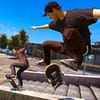
Explore Port Carverton and Master the Flick-It Skate System
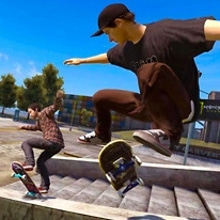
Skate 3 is a realistic 3D skateboarding game built around freedom, physics and precise board control rather than simple arcade button combinations. Explore the streets, plazas, rails, ramps and skateparks of Port Carverton while learning how to create smooth lines and perform increasingly difficult tricks.
The defining feature is the Flick-It control system. Instead of pressing one button for every trick, movements of the right stick control the skateboard more directly. On the browser keyboard layout, the Arrow Keys simulate those right-stick movements, allowing you to flick the board into ollies, flips and other tricks.
Push through the city, find a good spot, build speed and connect tricks into your own skating lines. You can concentrate on technical street skating, search for enormous gaps, practice inside skateparks or deliberately launch your skater into spectacular crashes in the famous Hall of Meat.
Skate Through Port Carverton
Port Carverton is a large fictional skateboarding city designed around places that naturally encourage experimentation.
Instead of following one narrow track, explore different districts and look for your own lines across:
- City streets.
- University areas.
- Plazas.
- Stairs and handrails.
- Skateparks.
- Industrial environments.
- Large ramps and downhill sections.
- Hidden gaps and unusual trick spots.
The city is not simply decoration. Curbs, ledges, rails, stairs and slopes can all become part of your next line.
Use Flick-It to Perform Tricks
Skate 3 feels very different from traditional arcade skateboarding games because the skateboard is controlled through directional flick movements.
Your steering input controls the skater, while a separate stick—or the Arrow Keys on keyboard—controls many board movements.
A basic ollie, for example, uses a downward movement followed by an upward flick. More advanced directional inputs can produce different flips and tricks.
This means timing matters. Learning the movement is more important than memorizing one dedicated trick button.
Learn the Basic Ollie First
Before attempting huge stair sets or long rails, practice a clean ollie on flat ground.
On the browser keyboard layout:
- Use Space to push and gain speed.
- Use WASD to steer.
- Use the Arrow Keys as the Flick-It/right-stick controls.
- Press Down and then flick Up to practice the basic ollie input.
Once you can consistently pop and land without losing control, move toward rails, banks and larger gaps.
Build Your Own Skate Lines
Skate 3 is at its best when you stop thinking about isolated tricks and begin looking at the environment as one continuous line.
A strong line might begin with a stair gap, continue into a grind, transition into a manual and finish with another flip over an obstacle.
Before beginning a run, inspect the area and decide:
- Where you will gain speed.
- Which obstacle will begin the line.
- Where you need to land.
- Which rail or ledge comes next.
- Whether you have enough space for the final trick.
Grind Rails and Ledges
Rails and ledges are everywhere in Port Carverton.
Approach them at a controlled angle and pop onto the surface with enough speed to maintain the grind.
Your approach matters as much as the trick itself. Entering too sharply can cause the board to miss the rail, while too little speed may end the grind before the best section.
Start with longer, easier rails before attempting short handrails beside stairs or narrow ledges.
Control Your Speed
More speed gives you access to bigger gaps and longer jumps, but maximum speed is not always ideal.
A technical rail may require a slower approach. A huge gap may need several strong pushes before takeoff.
Learn to judge speed according to the spot instead of simply pushing as fast as possible everywhere.
Land Tricks Cleanly
A difficult trick is worth nothing if you cannot bring the board back underneath your feet before landing.
Watch your rotation and avoid adding unnecessary movements while descending.
Beginners improve much faster by landing simple tricks consistently than by repeatedly attempting complicated flips with poor control.
Explore the University District
The University area provides a strong mix of stairs, rails, banks, gaps and large structures.
It is a useful place for practicing everything from simple street tricks to larger jumps.
Explore beyond the most obvious routes. Some of the best skate lines appear when you combine several ordinary objects in a way the environment does not explicitly tell you to use.
Skate Downtown
Downtown provides another type of environment with urban architecture that rewards street-style skating.
Look for ledges, long lines and spaces where several tricks can be connected without stopping.
Learning each district gradually makes navigation easier and helps you remember where your favorite spots are located.
Explore Industrial Areas
Industrial environments provide another set of obstacles, transitions and open spaces.
Change your skating style according to the terrain instead of attempting the same tricks in every location.
Use Skate.School to Practice
Skate 3 includes the Skate.School concept designed to teach the fundamentals of its unusual control system.
New players should spend time learning basic movements before expecting to land advanced tricks consistently.
Practice:
- Pushing and steering.
- Basic ollies.
- Flip timing.
- Manual balance.
- Grind approaches.
- Landing alignment.
Choose Your Difficulty
The browser project can offer several difficulty levels depending on the current build.
Easy provides more forgiving skating and is useful while learning the controls.
Normal delivers the standard experience.
Hardcore demands more accurate timing and cleaner landings.
If you are learning Flick-It with a keyboard rather than an analog controller, beginning on an easier setting can make the transition much more comfortable.
Use a Controller for More Precise Flick-It Inputs
The keyboard version makes Skate 3 accessible in a browser, but the original control system was designed around analog sticks.
A compatible gamepad can provide more nuanced directions than digital Arrow Keys because the right analog stick can move through many angles rather than only fixed keyboard directions.
If you want the closest experience to the original control philosophy, a browser-compatible controller is the preferred option.
Practice with the Keyboard
Keyboard play is still completely viable for learning basic lines and many tricks.
The main mapping treats:
- WASD as the left analog stick.
- Arrow Keys as the right analog stick.
- Space as the controller's A button.
- Additional keyboard keys as face buttons, triggers and bumpers.
Because keyboard input is digital, some subtle analog trick movements may feel different from playing with a controller.
Enter Freeskate
Freeskate is ideal when you do not want to concentrate on a specific challenge.
Choose an area, explore freely and invent your own objectives.
You can spend an entire session trying to perfect one rail, search for new spots or build the longest line possible without worrying about a strict mission structure.
Challenge Yourself with Bigger Tricks
As your control improves, gradually increase the difficulty of your skating.
Move from:
- Flat-ground ollies.
- Basic flip tricks.
- Small rails.
- Stair sets.
- Long grinds.
- Large gaps.
- Complex trick combinations.
Trying difficult spots too early can become frustrating because the real challenge is often the approach and landing rather than the trick itself.
Hall of Meat
Hall of Meat turns crashing into its own challenge.
Instead of avoiding every fall, deliberately launch your skater into spectacular bails and dangerous environments.
The physics-driven crash system makes these moments unpredictable and often hilarious.
Find a large drop, build speed and see what happens when the line goes completely wrong on purpose.
Create Your Own Skater
Skate 3 includes extensive character customization that allows you to create a skater with a distinctive appearance and style.
Customize your character before taking them into the streets and parks of Port Carverton.
Build Your Skate Team
Team progression is an important part of the original Skate 3 experience.
Build your skate crew, complete challenges and develop your brand as you progress through the city.
The team structure gives the game a wider objective beyond simply chasing one high score.
Create Skateparks
Skate.Park allows players to experiment with custom skatepark layouts where supported by the version being played.
Create plazas, ramps and obstacle combinations that fit the type of skating you enjoy.
Instead of searching the city for a perfect setup, custom park tools let players design their own.
Play with Other Skaters
The browser project includes multiplayer support, allowing supported sessions with other players.
Skating with others turns an ordinary spot into a shared session where players can try lines, compare tricks and explore the city together.
Availability and exact multiplayer features can depend on the browser build and session configuration.
Try Different Worlds and Parks
The current browser project lists larger areas such as University, Downtown and Industrial together with smaller environments including Skate School and Start Park.
Large worlds can require considerably more memory and loading time, particularly on mobile devices.
If performance is limited, begin with a smaller park before loading a large city district.
Mobile and Touch Play
The web adaptation can provide touchscreen controls with virtual sticks and buttons on compatible mobile devices.
However, Skate 3 is a demanding 3D game and the original control system depends heavily on analog movement, so performance and precision can vary significantly between phones and tablets.
Desktop or controller play remains the strongest option when available.
Main Objectives
- Explore Port Carverton.
- Learn the Flick-It control system.
- Push and steer through open skate areas.
- Perform ollies and flip tricks.
- Grind rails and ledges.
- Land increasingly difficult gaps.
- Combine tricks into long skate lines.
- Practice at Skate.School.
- Explore University, Downtown and Industrial areas.
- Experiment with different difficulty settings.
- Customize your skater.
- Build and develop your skate team.
- Experiment with Skate.Park creation where supported.
- Enjoy Freeskate sessions.
- Cause spectacular crashes in Hall of Meat.
- Skate with other players in supported multiplayer sessions.
Skate 3 Browser Controls
Keyboard:
- W / A / S / D: Left analog stick — movement and steering.
- Arrow Keys: Right analog stick — Flick-It trick inputs.
- Space: A button — push while skating.
- E: B button mapping.
- Shift: X button mapping.
- F: Y button mapping.
- Z: Left Trigger mapping.
- C: Right Trigger mapping.
- Q: Left Bumper mapping.
- R: Right Bumper mapping.
- Enter: Start.
Basic Ollie on Keyboard:
- Gain speed with Space.
- Use WASD to line up your approach.
- Use Down followed by Up on the Arrow Keys to simulate the basic right-stick ollie flick.
Controller:
- Left Stick: Move and steer.
- Right Stick: Flick-It tricks.
- A: Push.
- Face buttons, triggers and bumpers retain their mapped gameplay functions.
A controller is recommended for more precise analog Flick-It movements.
Tips for Better Skating
Learn the ollie before advanced flips. Every difficult line becomes easier once popping and landing feel automatic.
Do not push constantly. Control your speed according to the obstacle you are approaching.
Plan the landing before takeoff. Look beyond the rail or gap and decide where your board needs to finish.
Practice on flat ground. Learning a trick on an open surface is much easier than trying to understand it while falling down a stair set.
Use a controller if possible. Analog right-stick movement provides finer Flick-It control than four digital Arrow Keys.
Learn one district at a time. Remembering rails, ramps and gaps makes it easier to create longer lines.
Do not reset every imperfect landing. Sometimes recovering from an awkward trick creates a completely new line.
Experiment with difficulty. Easy mode can help new keyboard players understand Flick-It before moving to Normal or Hardcore.
Build lines instead of isolated tricks. The most satisfying skating comes from connecting the environment smoothly.
Why Skate 3 Became a Skateboarding Classic
Skate 3 stands out because it treats skateboarding as movement and creativity rather than only a sequence of special-move buttons.
The Flick-It system makes every trick feel connected to the motion of the board. Port Carverton provides enough variety to support technical street skating, enormous gaps, custom lines and ridiculous Hall of Meat crashes.
The result is a skateboarding game where the player decides what is interesting. One session might be spent perfecting a difficult handrail. The next might involve exploring the city, skating with friends or deliberately launching a character from the largest structure available.
Skate 3 combines realistic skate physics, open-world exploration, trick mastery, creativity and multiplayer skating in one of the most recognizable skateboarding experiences ever created. Push off, find your line and see how far your board control can take you.











 2 (151 votes)
 Share
Share
 Embed
Embed